
How to Add Bilingual Subtitles to Short Clips (Original + Translation)
Show the original line and its translation together so one clip works for two audiences. When bilingual subtitles help, how to set them up, and how to keep them readable.
In shortBilingual subtitles show each spoken line in its original language with the translation right under it. They let one clip reach two audiences — and they are now a two-click job: translate the subtitles, switch the subtitle mode to bilingual, export.
When bilingual subtitles are worth it
- Your audience speaks two languages. Creators in bilingual markets, or with followers abroad, can post one clip instead of two.
- The speaker is the point. In an interview with a well-known person, viewers want to hear the real voice and the real words — the translation helps without replacing them.
- Language learners watch you. Seeing a line and its translation together is exactly what learners look for, and they share clips that help them.
- The clip goes beyond its first market. A clip that does well in one language can travel further with a second line of text and no re-editing.
If your viewers only read one language, use the translation alone instead — two lines of text cost space and attention.
What good bilingual subtitles look like
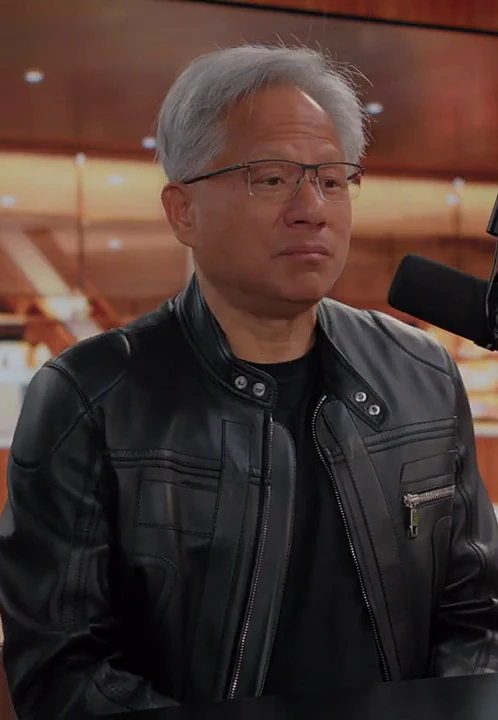
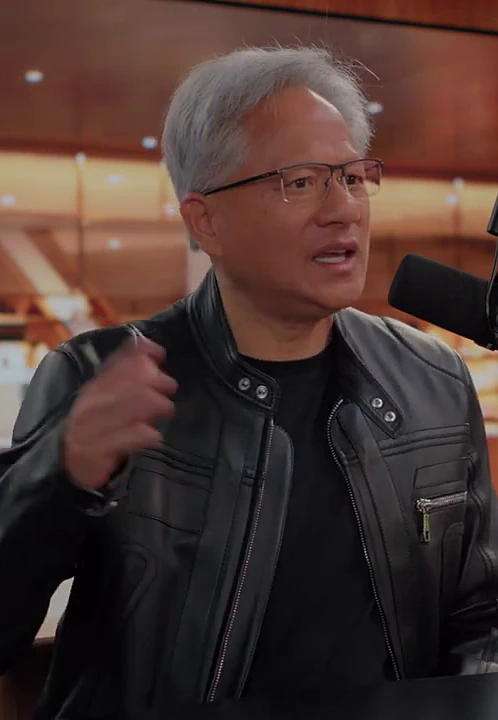
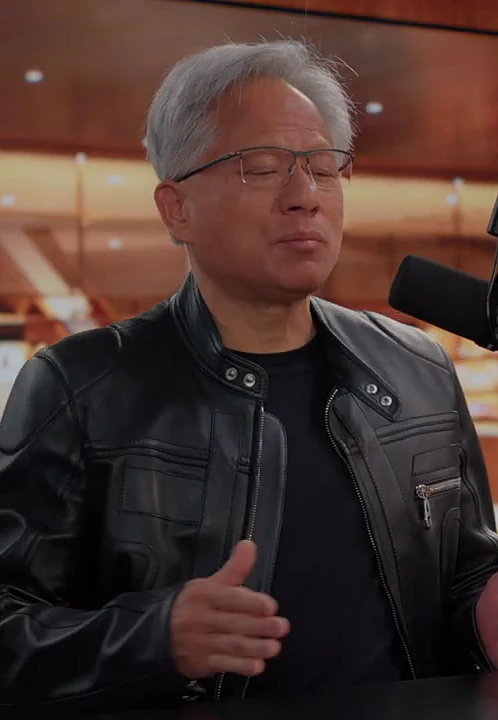
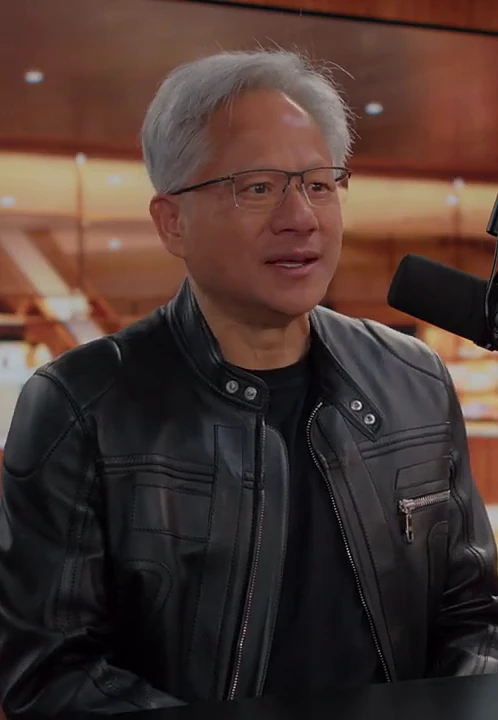
Here are two real lines from an English interview with their Chinese translation, stacked the way they appear in a clip — translation on top, original underneath:
世界不再需要更多放射科医生了。Nobody's, the world's not going to need any more radiologists.
猜猜我们缺什么?Guess what we're short of?
- Two lines, never more: the original and the translation of the same sentence, shown together.
- The translation larger, the original smaller and dimmer, so each reader finds their line at a glance.
- Short lines that change with the speech, not paragraphs that sit on screen.
- Placed above the bottom edge, where TikTok, Reels and Shorts put their own buttons and captions.
How to add bilingual subtitles to your clips
- Cut the clips Upload a long video to Smart Clip and let the agent cut the clips. Every clip gets subtitles from the transcript automatically.
- Click “Translate subtitles” and pick a language The request is written into the chat box for you — check it and send it. The agent translates the subtitles of every clip; ask in chat if you want only some of them.
- Set the subtitle mode to Bilingual In the style bar choose Bilingual, Translation or Original. Adjust the color, size and distance from the bottom while the clip cards preview the result.
- Decide what to do with the hook Translate the hooks the same way if you like, then choose whether the original or the translated hook is burned in.
- Export Each clip is rendered in your browser with the subtitles burned in, exactly as previewed.
Keep them readable: five rules
- Keep the subtitle size big enough to read on a phone at arm’s length; shrink only if a long sentence wraps three times.
- Move the subtitles up if the platform’s buttons cover them — a few percent above the bottom is usually enough.
- Pick a subtitle color that stands out from your footage — white or yellow on most videos, with bold on for busy backgrounds.
- Check one clip in the preview before exporting all of them.
- If the hook is in one language, keep it in the language most viewers read.
Already have a video and a subtitle file?
If you are not cutting clips — just adding subtitles to an existing video — two tools do the same job:
- Subtitle Translator: upload an SRT or VTT file and download the translated or bilingual SRT.
- Burn Subtitles into Video: burn an SRT or VTT file into the video for free, without uploading the video.
Frequently asked questions
Which line goes on top?
The translation, slightly larger; the original sits under it, smaller and dimmer. Viewers who need the translation find it first, and those who understand the original can still read it.
Can I translate the hook too?
Yes. Hooks and subtitles are translated separately, so you can translate both, or only one. For the hook you then choose whether the original or the translation is burned in.
How many languages can I translate into?
The language picker offers 17 languages. You can also ask the agent in chat for another one.
I already have an SRT file. Can I still make bilingual subtitles?
Yes — translate it with the subtitle translator to get a bilingual SRT, then burn it into the video with the free subtitle burn-in tool, which runs in your browser.